One of the pre-requisites to implement callback from ERP cloud to Oracle ICS is importing the ERP cloud certificates into ICS to authenticate SAML assertion from Oracle ERP cloud.
First we will cover how to retrieve the certificates:
1. The ERP cloud certificates can be retrieved from the Catalog Service WSDL URL.
The WSDL URL is like below:
R12: https://hostname/fndAppCoreServices/ServiceCatalogService?WSDL
R12: https://hostname/fscmService/ServiceCatalogService?WSDL
Enter the WSDL URL in your browser. Once loaded, navigate to X509Certificate element like shown below:

2. Copy each certificate string and in notepad make like below:
-----BEGIN CERTIFICATE-----
YIOUMIIDbDCCAlSgAwIBAgIGAVMkh+/kMA0GCSqGSIb3DQEBCwUAMHgxCzAJBgNVBAYTAlVTMRAwDgYDVQQIEwdNe
-----END CERTIFICATE-----
3. Save this file as erp_certificate1.cer
4. Repeat for second certificate line and save as erp_certificate2.cer
Now that we have both certificates we will import them into Oracle ICS
1. Login to Oracle ICS console
2. On the left navigation bar go to Integrations
3. Click on Settings

4. Under Settings select Certificates

5. On upper-right corner click on Upload
6. Select Type: Message Protection Certificate. Enter a valid name and browse and upload your certificate 1
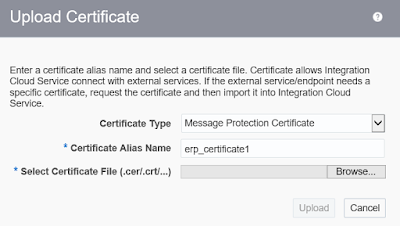
7. Repeat for certificate 2
There done.
Helpful?? Please Comment
Happy Learning!!
First we will cover how to retrieve the certificates:
1. The ERP cloud certificates can be retrieved from the Catalog Service WSDL URL.
The WSDL URL is like below:
R12: https://hostname/fndAppCoreServices/ServiceCatalogService?WSDL
R12: https://hostname/fscmService/ServiceCatalogService?WSDL
Enter the WSDL URL in your browser. Once loaded, navigate to X509Certificate element like shown below:

2. Copy each certificate string and in notepad make like below:
-----BEGIN CERTIFICATE-----
YIOUMIIDbDCCAlSgAwIBAgIGAVMkh+/kMA0GCSqGSIb3DQEBCwUAMHgxCzAJBgNVBAYTAlVTMRAwDgYDVQQIEwdNe
-----END CERTIFICATE-----
3. Save this file as erp_certificate1.cer
4. Repeat for second certificate line and save as erp_certificate2.cer
Now that we have both certificates we will import them into Oracle ICS
1. Login to Oracle ICS console
2. On the left navigation bar go to Integrations
3. Click on Settings

4. Under Settings select Certificates

5. On upper-right corner click on Upload
6. Select Type: Message Protection Certificate. Enter a valid name and browse and upload your certificate 1

7. Repeat for certificate 2
There done.
Helpful?? Please Comment
Happy Learning!!