If you are new to ICS and want to create a SOAP WSDL connection, follow the below steps:
1. Login to your Oracle Integration Cloud domain.

2. On the Home page click on 'Create Connections' green box

3. On the 'Connections' page, right-hand corner click on 'Create'

4. On the 'Select Adapter' pop-up, search for SOAP adapter and click on 'Select'

5. You will be directed to the 'Create New Connection' dialog. Fill as below:
a. Name - Enter a unique name for your connection (Not more than 50 char).
b. Identifier - (No need to enter) It will be added as you key in the connection name.
c. Role - Leave default -Trigger & Invoke
d. Description - Enter a short description if required.

6. Click on Create.

7. A connection is created (with status at 8%). Now we will configure it (to 100%).
8. (Optional) If you to receive notifications when there a change/issue with this connection, you can enter the email address in the 'Email Address' box.
9. Click on 'Configure Connectivity' button on the right side.
10. On the Properties dialog box enter/paste the web-service WSDL URL that you want to invoke.
(Upload is when you are using a abstract WSDL to create your own service)

If the web-service WSDL requires the additional properties mentioned, select the ones necessary.
11. Click on OK
12. Scroll down of the page and click on 'Configure Security'
13. Select the type of security policy* that is required for the service and enter the values as required.
By default, the security is set to 'Username Password Token' type.
a. Basic Authentication: When service requires username/password only to be called.
b. Username Password Token: When the service requires username/password as WSS token
c. No Security
d. SAML
*You can check the security policy by loading the WSDL in the browser.
14. Done, now Save and then Test your connection.
You can either
a. Validate and Test (Validates your entire WSDL), or
b. Test (Syntax validation)

15. Close
16. Your connection is created and configured 100%. It will have a ✅

Done.
Helpful?? Please Comment.
Happy Learning!!
1. Login to your Oracle Integration Cloud domain.

2. On the Home page click on 'Create Connections' green box

3. On the 'Connections' page, right-hand corner click on 'Create'

4. On the 'Select Adapter' pop-up, search for SOAP adapter and click on 'Select'

5. You will be directed to the 'Create New Connection' dialog. Fill as below:
a. Name - Enter a unique name for your connection (Not more than 50 char).
b. Identifier - (No need to enter) It will be added as you key in the connection name.
c. Role - Leave default -Trigger & Invoke
d. Description - Enter a short description if required.

6. Click on Create.
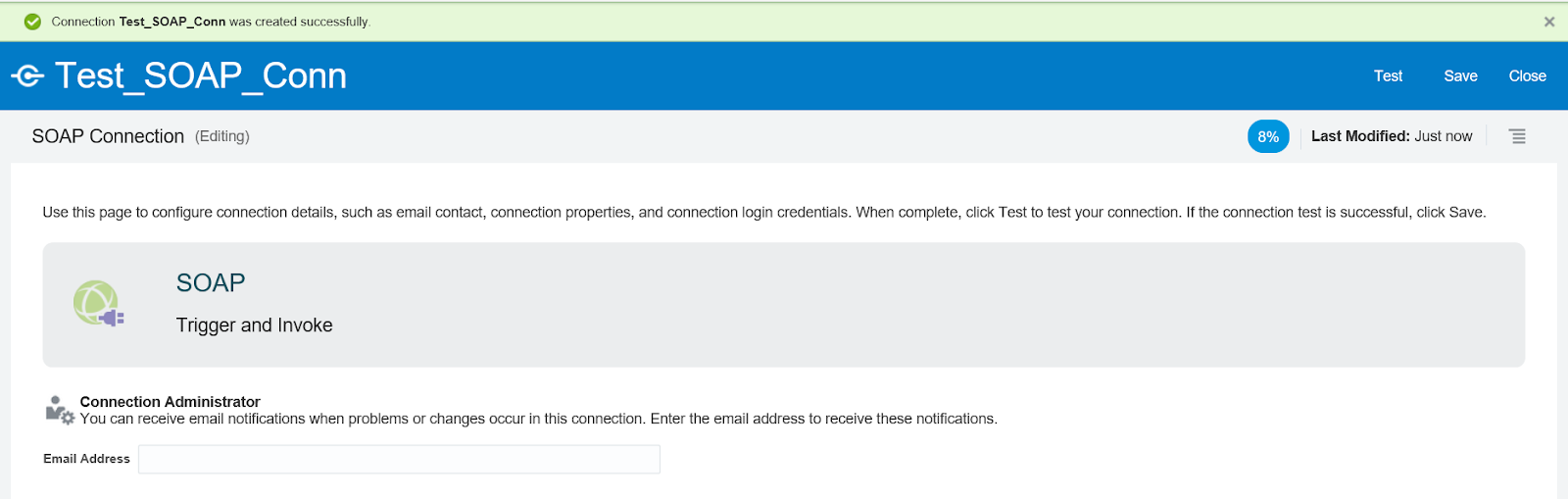
7. A connection is created (with status at 8%). Now we will configure it (to 100%).
8. (Optional) If you to receive notifications when there a change/issue with this connection, you can enter the email address in the 'Email Address' box.
9. Click on 'Configure Connectivity' button on the right side.
10. On the Properties dialog box enter/paste the web-service WSDL URL that you want to invoke.
(Upload is when you are using a abstract WSDL to create your own service)

If the web-service WSDL requires the additional properties mentioned, select the ones necessary.
11. Click on OK
12. Scroll down of the page and click on 'Configure Security'
13. Select the type of security policy* that is required for the service and enter the values as required.
By default, the security is set to 'Username Password Token' type.
a. Basic Authentication: When service requires username/password only to be called.
b. Username Password Token: When the service requires username/password as WSS token
c. No Security
d. SAML
*You can check the security policy by loading the WSDL in the browser.
14. Done, now Save and then Test your connection.
You can either
a. Validate and Test (Validates your entire WSDL), or
b. Test (Syntax validation)

15. Close
16. Your connection is created and configured 100%. It will have a ✅

Done.
Helpful?? Please Comment.
Happy Learning!!


