Below are the steps to create REST connection in Oracle ICS to create a REST service or to call a REST service.
1. Login to ICS Console
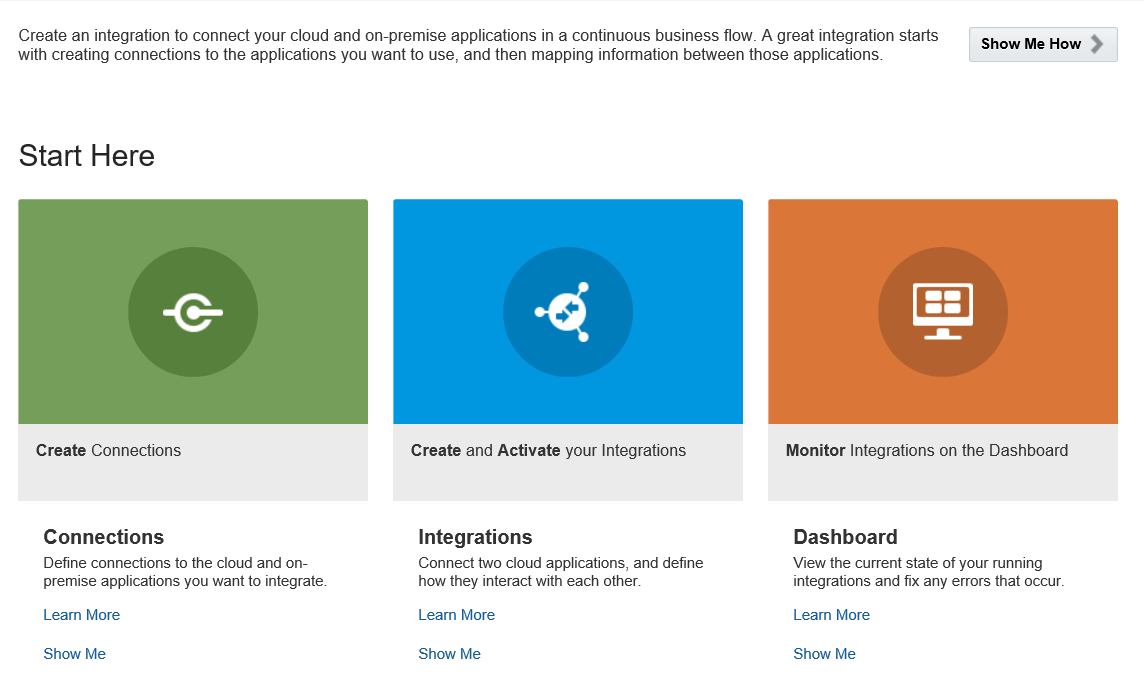
2. On Home page, click on 'Create Connection'

3. Click on create on upper-right corner

4. Search for REST and select

5. Enter the name - Test_REST_Conn
6.
a. Select Trigger and Invoke if you are going to call another REST URL
b. If you want create a REST integration/service using this connection then only select Trigger option (connection properties will be required to be entered)
Click on create.
7. If using option a, follow below steps or go to step 12
8. Click on 'Configure Connectivity'

9.
a. Select Connection Type: REST API Base URL
b. Connection URL: Enter/Paste the REST service URL

10. If the REST API requires authentication, ex: basic authentication, then click on the 'Configure Security'
11. Select Policy: Basic Authentication, and enter the username and password and click on OK

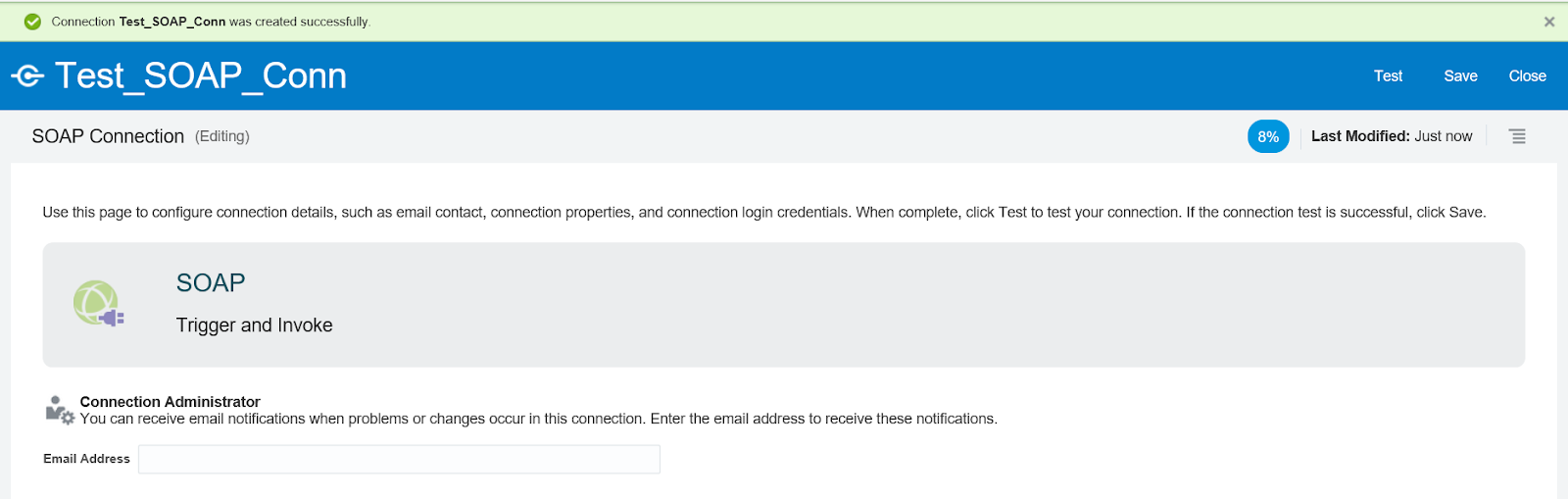
12. Click Save and Test your connection from the upper-right corner. If the test is successful, the connection status will be 100% and ready to use.
Helpful?? Please Comment
Happy Learning!!
1. Login to ICS Console
2. On Home page, click on 'Create Connection'
3. Click on create on upper-right corner

4. Search for REST and select

5. Enter the name - Test_REST_Conn
6.
a. Select Trigger and Invoke if you are going to call another REST URL
b. If you want create a REST integration/service using this connection then only select Trigger option (connection properties will be required to be entered)
Click on create.
7. If using option a, follow below steps or go to step 12
8. Click on 'Configure Connectivity'

9.
a. Select Connection Type: REST API Base URL
b. Connection URL: Enter/Paste the REST service URL

10. If the REST API requires authentication, ex: basic authentication, then click on the 'Configure Security'
11. Select Policy: Basic Authentication, and enter the username and password and click on OK

12. Click Save and Test your connection from the upper-right corner. If the test is successful, the connection status will be 100% and ready to use.
Helpful?? Please Comment
Happy Learning!!