Showing posts with label create. Show all posts

Wednesday, 26 February 2020

OSB 12c : Create & Configure Work Manager, Max, Min Thread Constraints

Firstly a little bit of theory. Its important you understand the concept of WM (and its as per Oracle documentation).

WebLogic Server uses a self-tuning thread pool for executing all application-related work. The pool size is managed by an increment manger which adds or removes threads to the pool when it deems it necessary.
The number of active threads will never exceed 400. 
As requests enter the server, a scheduler manages the order in which the requests are executed. When the number of requests exceeds the number of available threads, they are queued and then executed as threads return to the pool and become available. 
Work Managers indicate the type of work and priority of a request to the scheduler.

The following concepts are important to consider when assigning Work Managers to services.

1. Request and response pipelines always execute in separate threads. While the request thread originates from the proxy service transport, the response thread originates from the business service transport.

2. When external services are invoked, threads can be blocking or non-blocking, depending on the pipeline action, the Quality of Service (QoS) configuration, and the transport being used.

3. When using blocking calls, a Work Manager with a minimum thread constraint must be associated with the response in order to prevent server deadlocks.

Two key properties when configuring a Work Manager are Max Thread Constraints and Min Thread Constraints.
A maximum thread constraint limits the number of concurrent threads executing a type of request by restricting the scheduler from executing more than the configured number at one time. However, the thread pool is shared among all Work Managers, so there is no guarantee the maximum number of threads will be available for processing at any given time.

A minimum thread constraint guarantees a minimum number of threads for processing. If sufficient threads are not available in the thread pool to process up to the minimum number, the scheduler uses standby threads to satisfy the minimum. Standby threads are not counted as part of the maximum number of 400 threads in the pool. When a thread is executing a request associated with a Work Manager containing a minimum thread constraint, the Work Manager first checks the queue for another request associated with the same constraint and executes it (instead of returning to the free pool). For this reason, use minimum thread constraints judiciously. Over-use can cause resource starvation of the default Work Manager, leading to unpredictable results.

The Work Manager (dispatch policy) configuration for a business service should depend on how the business service is invoked.
If a proxy service invokes the business service using a service callout, a publish action, or routing with exactly-once QoS, consider using different Work Managers for the proxy service and the business service instead of using the same for both. For the business service Work Manager, configure the Min Thread Constraint property to a small number (1-3) to guarantee an available thread.

Now after all the theoretical details we will see how we can configure work manager in OSB 12c. The concept is similar to that of 11g however the screens have changed for OSB applications.

1. Login to Admin Console : http://host:port/console
2. Click on Lock & Edit
3. Navigate to Environments > Work Managers


4. Create New


5. Select Maximum/Minimum Thread Constraint (which ever you want to create)


6. Provide Logical Name and Count - say MaxThread4 and 4


7. Click on Next 
8. Choose the target server
9. Finish

Now again click on New 


1. Select Work Manager
2. Provide a Logical Name


3. Click Next
4. For Max and Min Threads Constraint from the drop-down select the ones you have created above
5. Finish and your WM is created with the constraints

Now assigning the WM to your service
1. Login to Service Bus console
2. Create Session
3. Navigate to your Proxy or Business Service
4. Under Transport Details Tab > from drop-down select your WM you have created.
5. Save and then Activate your session 

Helpful? Comment

Happy Learning!

Wednesday, 4 July 2018

Oracle Fusion Application : Create Custom ESS Job to run BIP Report


In this post I will list the steps required to create a new custom ESS job to be used to run a BIP report which takes a parameter input.

Assuming that you have already created a BIP report, lets begin!

1. Login to Oracle Application Cloud
2. Navigate to Setup & Maintenance
3. In Search Task, search for 'Enterprise Scheduler Jobs for Financial and Supply Chain Management%'


4. Click on the task
5. On the Manage Job Definition Tab you will see a Action icon like below


6. Click on Action and select Create


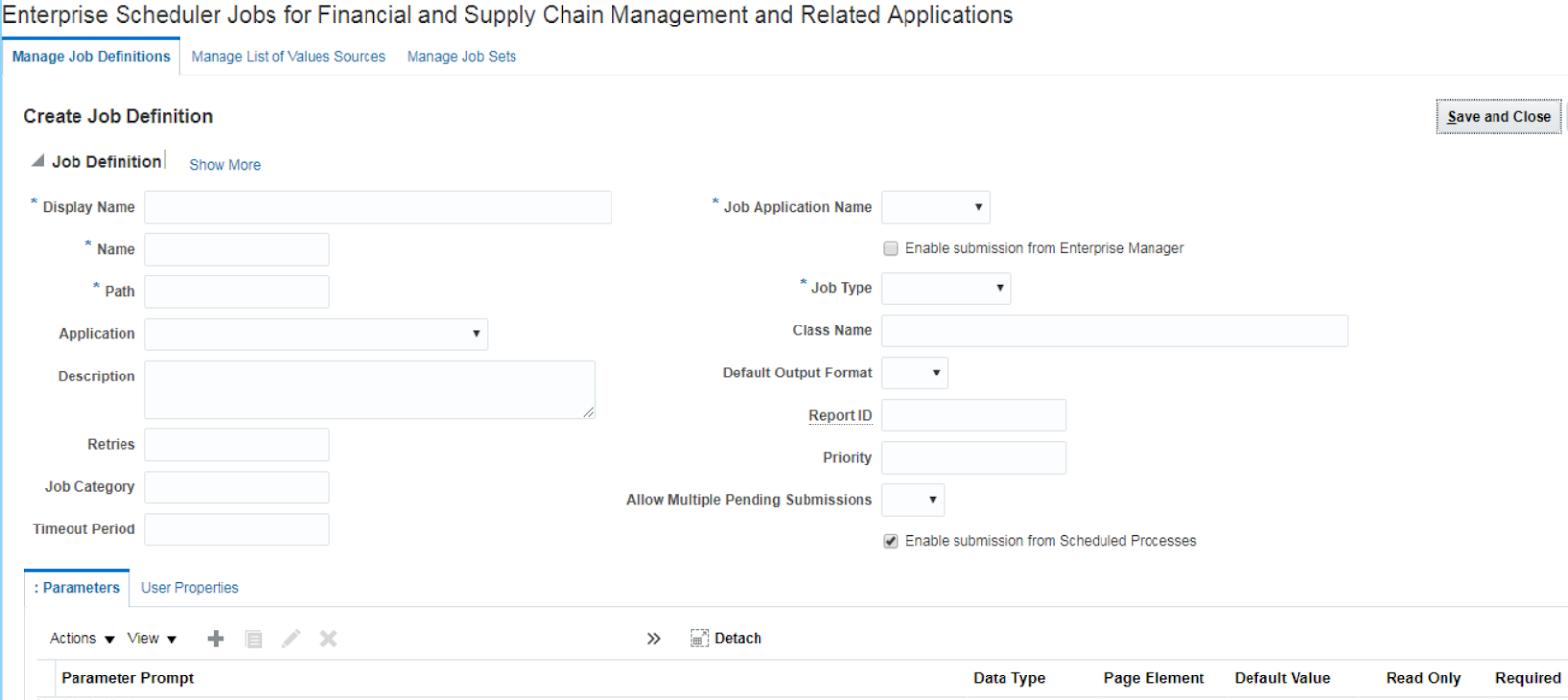
7. On the Job Definition page above,  fill the details like below:

Display Name: Test ESS Job [a meaningful name]
Name: Test_ESS_Job [Identifier without spaces]
Path: fscmess/testjobs/ [relative folder which will be created under path /oracle/apps/ess/custom/]
Description: Custom ESS Job
Job Application Name: FscmEss
Enable submission from Enterprise Manager: Unchecked
Job Type: BIPJobType
Bursting report: Checked if you have bursting for your report else Unchecked
Class: (Auto populated)
ReportID: /Custom/Samples/Test BIP Report.xdo [path of your report on BI Catalog]
Allow multiple pending submissions: False
Enable submission from Schedule Process: Checked

8. On the parameter tab below click on Actions > Create
9. Enter the details like below

Parameter Prompt: Identifier
Data Type: String
Read Only: Unchecked
Page Element: Text Box
Default value:
Tool Tip:
Required: Checked
Do not Display: Unchecked

10. Save and Close
11. Done

To submit/run this job:

1. Navigate to Schedule Processes > Schedule New Process > Search (Test Ess Job)
2. Select
3. Enter parameter id and submit.
4. Refresh to view the status of the process.
5. Check your report output in process log.


Helpful?? Please comment

Happy Learning!!

Saturday, 23 June 2018

Oracle ICS : How to use Lookups in integrations - lookupValue function


To use a lookup in your integration, ICS provides a function : lookupValue which is configured with the Build Lookup Function wizard.

You may have already created a lookup on the Lookups page.
On steps how to create a lookup you can follow the blog page: Oracle ICS : How to create Lookups

Below are the steps to access and use a lookup.

1. Build Lookup Function Wizard:
  a. Go to and open your Integration (Edit mode)
  b. Open the Expression Builder (in mapping, assign, filter and other flow actions)


   c. Expand Components   
   d. Expand Functions > ICS
   e. Drag the lookupValue function into your expression box

You can also search for 'lookupValue' in the search box for Components.

The Build Lookup Function Wizard is displayed.

2. Setting up the lookup function:
    a. From the displayed lookups select the lookup you want to use (I have used the same lookup i created earlier)


b.  Click on Next 

The lookupValue function requires a source and target column.
The source column refers to your source value and the function returns the value in the corresponding target column.
If not found it will return the default value(if you define one)

Basic signature:
lookupValue(dvmlocation, srcColumn, srcvalue, targetColumn, defaultValue)

   c. Click on 'Select Source Column' and select the source column
   d. Repeat for Target Column
   e. Lookup definition will then look like below:


   f. Click on Next
   g. Enter a default value example: 'No Value Found' or leave blank
   h. Click on Next

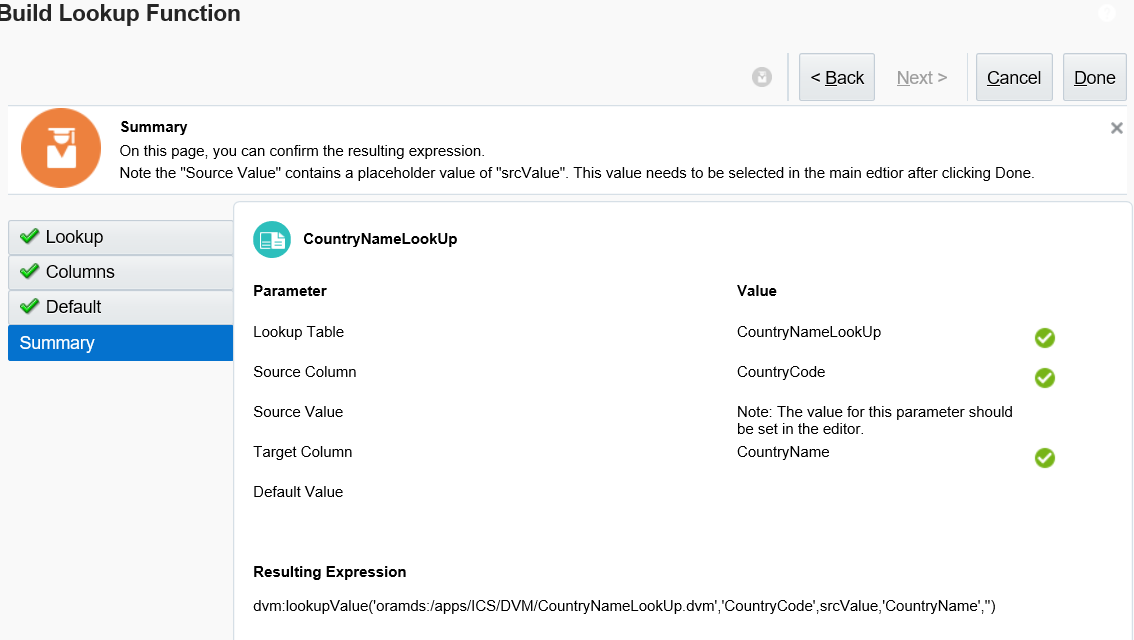
Summary is like below:


   i. Click on Done 
   j. You will see a Warning message because srcValue is not yet set
   k. Click on OK
   l. The expression is like below:

dvm:lookupValue('oramds:/apps/ICS/DVM/CountryNameLookUp.dvm','CountryCode',srcValue,'CountryName','')

  m. Remove the srcValue and map/enter the value you want to use.
  n. If hard coding, enter the value in quotes - example 'IN'

dvm:lookupValue('oramds:/apps/ICS/DVM/CountryNameLookUp.dvm','CountryCode','IN','CountryName','')

 3. Validate and Save.

When you will run your integration the lookup will fetch 'India'.


Helpful? Please Comment.

Happy Learning!!


Oracle ICS : How to create Lookups / Domain Value Map (DVM)


In Oracle ICS lookups are pretty simple and easy to configure and use.
They are also easy to migrate from one environment to another.

Below is a detailed explanation of how to create lookups in Oracle ICS.

1. Login to Integration Cloud Service domain.
2. On the home page click on the Lookups diagram


3. Click Create on the right top corner.
The create new lookup dialog is deisplayed

4. Enter a Name, an optional Description and click on Create.


5. The lookup page is displayed.
6. Click on the domain name and select Edit Domain Name to change name.


7. Enter a new name and click on OK. (Character limit is 50)


8. Similarly edit other domain name.
9. Add new domain/column by using the '+' on the right hand side.
10. Enter a value in the field below the domain name. To add more rows click on '+' on the bottom.
11. Repeat to add more domain and values to the lookup.
12. Your lookup will look like below:


13. Click Save when complete.


Helpful?? Please Comment

Happy Learning!!

Monday, 28 May 2018

Oracle ICS : Create a REST connection


Below are the steps to create REST connection in Oracle ICS to create a REST service or to call a REST service.

1. Login to ICS Console
2. On Home page, click on 'Create Connection'


3. Click on create on upper-right corner


4. Search for REST and select


5. Enter the name - Test_REST_Conn

6.
a. Select Trigger and Invoke if you are going to call another REST URL
b. If you want create a REST integration/service using this connection then only select Trigger option (connection properties will be required to be entered)

Click on create.

7. If using option a, follow below steps or go to step 12

8. Click on 'Configure Connectivity'


9.
a. Select Connection Type: REST API Base URL
b. Connection URL: Enter/Paste the REST service URL


10. If the REST API requires authentication, ex: basic authentication, then click on the 'Configure Security'

11. Select Policy: Basic Authentication, and enter the username and password and click on OK


12. Click Save and Test your connection from the upper-right corner. If the test is successful, the connection status will be 100% and ready to use.


Helpful?? Please Comment

Happy Learning!!

Saturday, 7 April 2018

Oracle ICS : Create SOAP connection using WSDL URL


If you are new to ICS and want to create a SOAP WSDL connection, follow the below steps:

1. Login to your Oracle Integration Cloud domain.


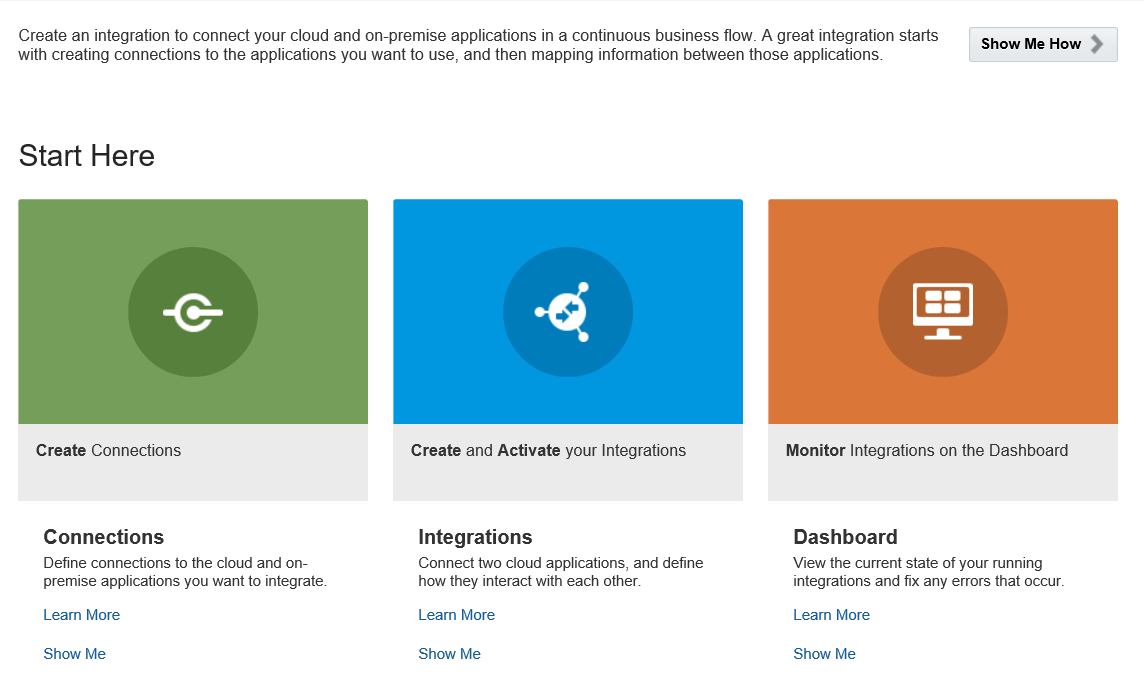
2. On the Home page click on 'Create Connections' green box


3. On the 'Connections' page, right-hand corner click on 'Create'


4. On the 'Select Adapter' pop-up, search for SOAP adapter and click on 'Select'


5. You will be directed to the 'Create New Connection' dialog. Fill as below:

  a. Name - Enter a unique name for your connection (Not more than 50 char).
  b. Identifier - (No need to enter) It will be added as you key in the connection name.
  c. Role - Leave default -Trigger & Invoke
  d. Description - Enter a short description if required.


6. Click on Create.


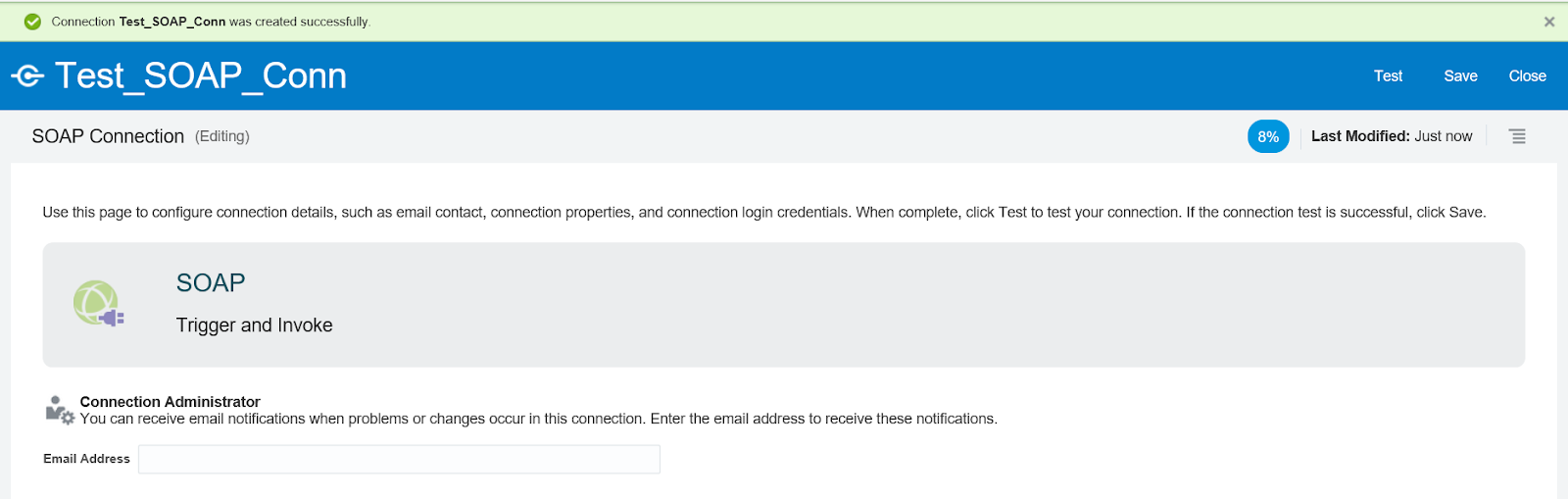
7. A connection is created (with status at 8%). Now we will configure it (to 100%).

8. (Optional) If you to receive notifications when there a change/issue with this connection, you can enter the email address in the 'Email Address' box.

9. Click on 'Configure Connectivity' button on the right side.

10. On the Properties dialog box enter/paste the web-service WSDL URL that you want to invoke.
(Upload is when you are using a abstract WSDL to create your own service)


If the web-service WSDL requires the additional properties mentioned, select the ones necessary.

11. Click on OK
12. Scroll down of the page and click on 'Configure Security'
13. Select the type of security policy* that is required for the service and enter the values as required.

By default, the security is set to 'Username Password Token' type.

  a. Basic Authentication: When service requires username/password only to be called.
  b. Username Password Token: When the service requires username/password as WSS token
  c. No Security
  d. SAML

*You can check the security policy by loading the WSDL in the browser.

14. Done, now Save and then Test your connection.

You can either
  a. Validate and Test (Validates your entire WSDL), or
  b. Test (Syntax validation)


15. Close
16. Your connection is created and configured 100%. It will have a ✅


Done.


Helpful?? Please Comment.

Happy Learning!!


OSB 12c : Dynamic Routing to Business/Proxy Service

Dynamic routing is a kind of  Content-based Routing pattern, which is used when the BusinessService/ProxyService path is required to be de...